A Christmas orniment hanging on a Christmas Tree with Happy Holidays written in front of it.
I just wanted to wish everyone out there in this increasing crazy world out there. I have not felt much like celebrating the holidays since I lost my Wife three years ago but this years has me feeling much more into the spirit of things. With that being said I hope that you and yours have the happiest of holidays! 😀
Recently WordPress has updated their WYSIWYG editor to Gutenberg which is absolutely fantastic! The only issue thus far is that when editing or updating a post within WordPress you see is the following.
This prevents the auto save and publish functions from working. WordPress and Cloudflare are working on the issue and have a workaround in place. The fix involves disabling two rules in the WordPress rules set in the Web Application Firewall settings in your Cloudflare account.
Once you are logged in click on the domain that you need to edit.
Click on Firewall from the top menu.
Scroll down to the section titled IP Firewall Button.
Click the button to the left titled Web Application Firewall.
Look for the section titled Package: Cloudflare Rule Set.
Click Rule Details.
Scroll down to the section titled Cloudflare WordPress and click the link.
Click on page 4 from the pagination at the bottom of the section.
Look for the rules WP0025A and WP0025A.
On the far right side of the section under the Mode heading you will see a drop down list.
Choose disable for both rules.
You should see a green par across the bottom of the screen indicating that the settings are saved.
Click the Close button.
Go back to your WordPress Admin area and try to edit a post.
Unfortunately this workaround has never worked for me even after Gutenberg was updated and Cloudflare pushed out patches on their end. As a last resort I had to whitelist my IP from the Firewall Events section of the Firewall page.
Now I am once again able to edit posts and whatnot in WordPress!
Some of these are pretty basic and some are a bit more advanced and/or obscure in my opinion. I hope they are also useful to others out there. Please not that files names and file paths are just made up examples and might not fit what you are attempting to accomplish.
cd – change directory
Carl + c – cancels the currently running foreground operation
pod – s/how your current fill file path
cp /path/to/file.txt /path/to/your/new/file.txt – copy a file from one location to another location
move (rename) a file from one location to another location – mv file1.txt file1.back.txt
show the tail end of a file with any new additions that are written to the file – tail -f /var/log/messages.log
determine if a node is online – ping duck.com
determine the network route to a given node – trace route duck.com
perform a DNS lookup on a given address – nslookup duck.com
show xx number of lines at the tail end of a file – Show the tail end of a file with any additions – tail -f /var/log/messages
run a shell script – bash shellscript.sh OR sh shellscript.sh
check drive mappings for the currently mounted file system – do -h
change to another system user – su username
easy way to change to the root user if you have sudo level access – sudo -i
My family dines at this restaurant semi regularly and sometime during the COVID “end times” the chain discontinued two of our favorite breakfast items, the Uncle Herschel’s Favorite and the Sunrise Sampler. The staff of course does not know why menu items are changed as this is a decision made at the corporate level so there is no point in complaining to them about the missing items. I did find a thread on the Cracker Barrel Subreddit (yes that is a thing) where I was able to recreate my personal favorite, the Uncle Herschel’s Favorite and my Brother found a random review on Trip Advisor that provided his favorite, the Sunrise Sampler. In the off chance that someone else is wanting to dine on these two lost menu items I thought that providing the workaround we discovered might be helpful to others out there.
The Uncle Herschel’s Favorate (modified)
Two Eggs (scrambled with cheese)
Grits
Farm-Raised Catfish
Fried eggs
Biscuits & Gravy
In order to recreate this item on today’s menu you will need to choose the Build Your Own Homestyle Breakfast option from the menu. Fortunately, this comes with Biscuits & Gravy and two eggs already! For myself I would ask to have them scrambled with cheese but you choose your eggs however you wish. Now we will need to make the following selections:
Choose catfish as the meat (grilled).
Choose fried apples as the side.
Add gets as an additional side.
If you are not a catfish fan you can choose whatever other meat option that you wish.
The Sunrise Sampler
Two eggs (scrambled with cheese)
Grits
Fried Apples
Hashbrown Casserole
Meat sampler (Bacon, Sausage, and Country Ham)
Biscuits & Gravy
Much like the prior item you will need to choose the Build Your Own Homestyle Breakfast option from the menu. Fortunately, this will come with Biscuits & Gravy and two eggs already! My Brother would also ask to have them scrambled with cheese but you choose your eggs however you wish. Now we will need to make the following selections:
Choose meat sampler as the meat.
Choose fried apples as the side.
Add hash brown casserole as an additional side.
Add grits as an additional side.
This is as close to the original items as we have been able to determine. Unfortunately, these now cost more than the original items but it replicates everything else that you want from Breakfast! Feel free to contact me on Mastodon if you know of a cheaper way to do this or lament other list menu items from this Midwestern stable!
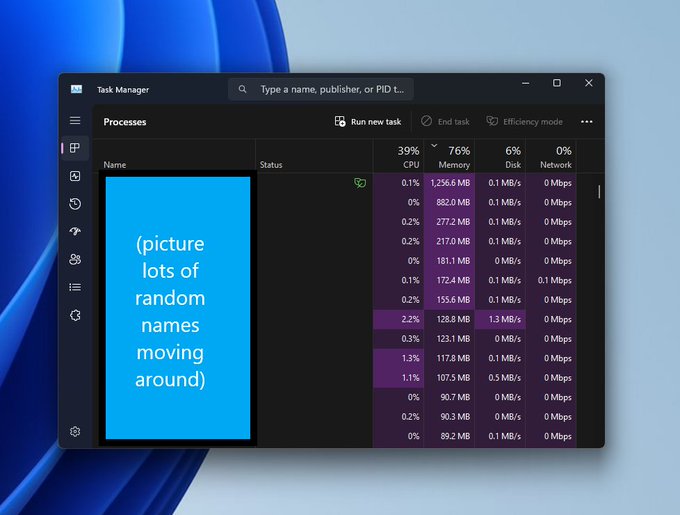
I can’t believe I’ve been struggling with apps in the Task Manager randomly moving around without realizing there’s a simple keyboard shortcut to pause the Task Manager and stop its contents in their tracks. Yup, all you have to do is hold down the CTRL key and it will pause the Task Manager on both Windows 10 and Windows 11, and perhaps even older versions of Windows, too.
This tip only applies to Windows 10 and 11 and I wish I had known this years ago! At any rate as you can see in the original article at your leisure and I hope it helps out others out there in this wide world.
---------- On Red Hat Linux ----------
$ cat /etc/redhat-release

---------- On CentOS Linux ----------
$ cat /etc/centos-release

---------- On Fedora Linux ----------
$ cat /etc/fedora-release

---------- On Debian Linux ----------
$ cat /etc/debian_version

---------- On Ubuntu and Linux Mint ----------
$ cat /etc/lsb-release

---------- On Gentoo Linux ----------
$ cat /etc/gentoo-release

---------- On SuSE Linux ----------
$ cat /etc/SuSE-release
AS you can see this various depending on on which form of the original Linux Operating System so I usually end up searching for this as it is not something that I use day to day in my professional or work life. I hope it makes somees’s day that much easier. 🙂
Neofetch is really neat open source tool for displaying your system information on your command line oof choice. There are a lot of instructions on the Internet explaining how to do this on most Linux based system. There is a lot less information for Unix like systems such as macOS. Currently, I am running macOS Montery and as this version of the operating system now uses ZSH over the traditional Bash shell for the Terminal app . Eventually, I figured out that this difference in default shells is why I could not get this to work. If you want to do this for yourself you will need to first install the application.
Now, unlike installing most applications on macOS there is no graphical installer so instead we have to use the fantastic macOS package manager Homebrew. in order to do this open up Terminal and run this command:
Once neoffetch has been installed running it is super easy, just do:
neofetch
Great, now that we have neofetch installed, if you want to run this. every time a Terminal window opens we need to create a .zshrc file in your home directory which will run the neofetch command every time you open a new Terminal window.
sudo nano .zshrc
then you just add the command into this new blank file
Don’t forget to do ctrl+x to save the file. 🙂
If all went well you should see something similar to this once you quit and open Terminal.
If you have any issues or questions feel free to DM me on Twitter or use the contact form on this site.